Edit a document in production without an accident
The settings to turn on before you point this at something that matters, and what each one actually stops.
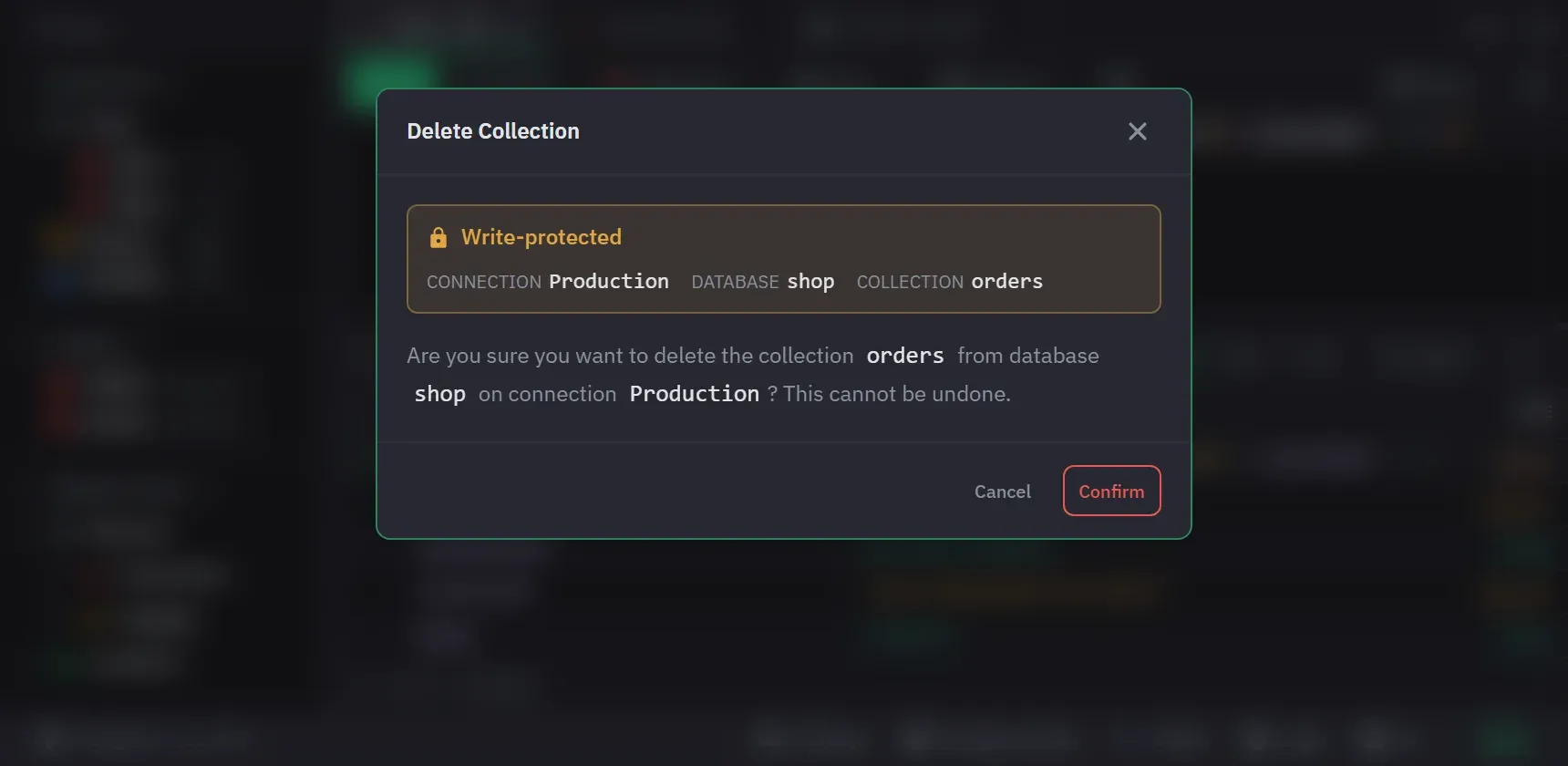
Do this once per production connection, before the first time you need it.
1. Write protection, scoped
Right-click the connection, choose Edit Connection, and open the Advanced tab. Tick Require confirmation before executing destructive queries. Then narrow it with Protected Databases and Protected Collections if the connection also holds things you edit freely. Two empty lists protect everything. A protected connection, database or collection is marked in the sidebar.
It covers inserts, updates, deletes, bulk writes, drops, renames, index changes, creating a database or a collection, and the aggregation stages that write. Every entry point asks, including the keyboard, the builder’s own stage preview, editing a value in the results, and deleting documents from them. Write protection also covers a drop, a rename and an index change that you start from the sidebar, and a copy or import that writes into a protected target. An AI assistant can read the protection but cannot change it.
The block is enforced at the driver, not by reading your query, so a destructive call built at runtime out of a variable is still refused. Write protection explains why that distinction is the whole point.
2. A colour
Set the Color in the same dialog, next to the connection name. Pick a preset or enter a hex
value. The colour appears on the connection’s tabs and sidebar items. The tab tells you which cluster you
are about to write to, before you press Ctrl+Enter. This is the cheapest safety feature here.
3. A result cap
Each connection has a result cap, 1,000 documents by default. Change it with Result Auto-Cap on
the Advanced tab. An explicit .limit() wins over it
even when larger, so the cap protects you from the query you did not think about rather than from
the one you did.
4. A MongoDB user that cannot do the damage
Everything above protects you from yourself inside this app. None of it changes what your
credentials can do. If the user you connect with can drop a collection, it can still drop one from
mongosh.
For a real boundary, connect to production with a read-only user and keep a separate profile for the rare write. Users and roles manages those from inside the app (Pro).
When you do edit
- Double-click a value in the Tree or Table view to edit it in place. A bar above the result names the field and holds a type selector, so a number does not silently become a string. Enter saves and Escape cancels. On a protected target, saving asks for confirmation first. An object or an array offers Edit Field in New Tab instead.
- Use the preview drawer,
Ctrl+I(Cmd+Ion macOS), to read the whole document before changing one field of it. - Select two or more documents and choose Show Diff to compare them side by side before overwriting one with the other (Pro).
- A failed save puts the old value back and reports the failure.
- The operation log records what ran, with its duration and outcome, which is what you read afterwards when someone asks what happened.