Import a CSV or JSON file into MongoDB
mongoimport needs --headerline for CSV and guesses every type unless you tell it otherwise. The import dialog does the same job with the traps labelled.
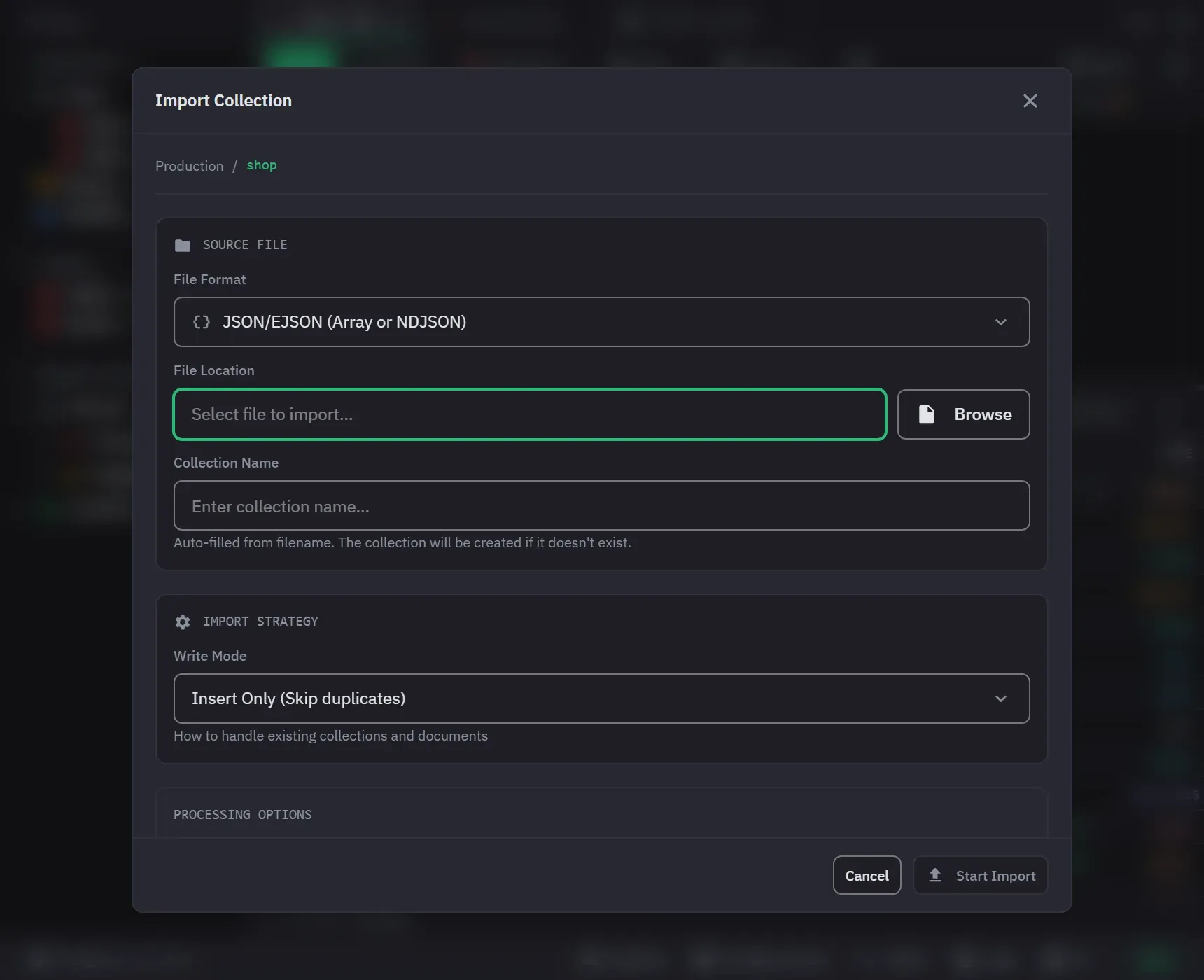
mongoimport ships with the database tools and loads JSON, NDJSON, CSV and TSV into a collection.
The import dialog here does the same job. The traps are the same either way, and they are all about
types.
With mongoimport, on any MongoDB
mongoimport --uri="mongodb://localhost:27017" \
  --db=shop --collection=orders \
  --type=csv --headerline --file=orders.csv
--headerline is what makes row one the field names. Without it, mongoimport imports that row
as a document, so you get one row of column titles stored as data and every field named by position.
It applies to CSV and TSV only, and it is an error on JSON.
Every CSV value is text, and the guessing is narrower than you would hope. Left to itself,
mongoimport tries a 32-bit integer, then a 64-bit integer, then a float, then gives up and stores a
string. That is the whole list. A ZIP code of 01234 becomes the number 1234 and an order reference
of 1e5 becomes 100000, while a date lands as a string, because nothing in that sequence parses
dates or booleans at all.
Name the types yourself with --columnsHaveTypes, where each column is written as
<name>.<type>(<arg>). Where the annotations go depends on where the names come from, and the two
options are alternatives rather than a pair. --fields is for a file with no header line:
mongoimport --uri="mongodb://localhost:27017" \
  --db=shop --collection=orders \
  --type=csv --columnsHaveTypes \
  --fields='reference.string(),total.decimal(),placedAt.date(2006-01-02 15:04:05)' \
  --file=orders.csv
With --headerline, the annotations belong in the file’s own first row instead, and --fields is
not passed at all:
reference.string(),total.decimal(),placedAt.date(2006-01-02 15:04:05)
INV-1,19.99,2026-01-04 09:15:00
The date argument is a Go time layout rather than a YYYY-MM-DD pattern, which surprises everyone
the first time.
Pick the write mode on purpose. --mode defaults to insert. A duplicate _id raises a
duplicate key error for that document, and the run carries on: mongoimport continues through
duplicate key and validation errors unless you pass --stopOnError, so a partial import reports
failures at the end rather than halting at the first one. The other modes are upsert (replace
matching documents, insert the rest), merge (merge fields into matching documents) and delete.
Matching is on _id unless you name other fields with --upsertFields. --drop empties the
collection and its indexes first.
For restoring a dump rather than loading a file, the tool is mongorestore, and
copying a collection covers when each applies.
In the app
There are three ways in, all in the sidebar:
- Right-click a database and choose Import Collection to load a file into a new collection.
- Right-click a collection and choose Import into Collection to load a file into that one.
- Right-click a connection and choose Import Database to load a folder of files (Pro).
The steps:
- Open the dialog. Both file dialogs are titled Import Collection.
- Under Source File, pick the File Format (JSON/EJSON, CSV/TSV Files or Excel
Files) and the File Location. Choosing the file sets the format from its extension. It
suggests a collection name, and it picks the tab delimiter for a
.tsv. A name you typed is never replaced. - For a new collection, check the Collection Name. The app creates the collection if it does not exist.
- For CSV, set the Delimiter and First row contains column names. Without a header row,
the columns are named
field1,field2and so on. - Set the Write Mode and the Processing Options, described below.
- Click Start Import. The progress bar counts the documents imported and the documents that failed. Cancel Import stops the run, and the documents already imported stay.
When the import finishes, the app reports how many documents landed and opens the collection if the import created it.
JSON, NDJSON, CSV and TSV are streamed rather than read whole, so memory does not grow with file size and there is no practical ceiling. Excel import is Pro, reads the first sheet, takes row one as the column names, and reads the whole workbook. A leading UTF-8 byte-order mark is removed, so a file saved by Notepad or exported from Excel as CSV UTF-8 keeps its first column name.
Pick a write mode deliberately
| Write Mode | What it does |
|---|---|
| Insert Only (Skip duplicates) | Adds documents. A document whose _id the collection already holds is refused and counted as failed. The rest still land |
| Upsert (Update or insert by _id) | Replaces a matching document, inserts the rest. A document with no _id is inserted |
| Drop & Insert (Clear collection first) | Empties the collection first. A red warning appears when you pick it |
The app reads the file before it drops the collection, so a file that cannot be read leaves your data in place. Drop & Insert into a write-protected target asks for confirmation before the drop. If you are importing into production, turn write protection on before you start rather than after.
Errors: stop or continue
Stop on First Error is off by default. The import then skips a document or row it cannot read, and it counts them. Tick the box while you are still working out whether the file is right. Clear it once you know. A row with more or fewer cells than the header row is imported, not skipped.
The type inference traps
This is where CSV imports go wrong quietly.
- Numbers, booleans and null are inferred when Auto-convert Types is on. A column of
1and0becomes numbers, not booleans, unless the cells saytrueandfalse. - A cell holding JSON is parsed into an object or an array.
- An empty cell imports as null, not as a missing field. Those are different in MongoDB and
queries with
$existswill tell them apart. - Dates only from an ISO-style leading
YYYY-MM-DD. This is deliberate, and it is whyorder-1,sku-2andQ1-2024stay text instead of turning into dates in 2001. If your dates are03/04/2026, they will import as strings, and that is the correct answer because nobody can tell whether that is March or April.
The Auto-convert Types switch is on by default. The dialog does not offer it for JSON, which already carries its types. If the inference is not what you want for a CSV, turn it off and every column imports as text, then fix the types with an update. Either way, check the result in tree view, where every value shows its BSON type, before you import the other nine files.
A whole database at once
Right-click the connection, choose Import Database (Pro), name the database, and pick the source directory and the file format. The dialog reports how many files match before it starts. Each collection takes the file’s name without its extension. Files with another extension are ignored, and the import will not start when nothing matches. With Stop on First Error on, one failed file stops the files after it.