Document actions and result export
Editing a document in place, comparing two of them, and getting a result out of the app.
A result offers two ways to change a document. An inline edit changes one value in place and writes it at once. Every other action opens a new query tab that holds the generated code, and you run that code yourself. The tab opens next to the tab it came from, carries a title that names what it will do, and never runs by itself.
Editing in place
Double-click a simple value in Tree view, Table view or a nested viewer to edit it. A bar opens above the result. It names the field path, and it holds the value, a type selector, Save and Cancel. Enter saves and Escape cancels. A value that is an object or an array has no inline edit. Its menu offers Edit Field in New Tab instead.
Strings, numbers, booleans, dates, ObjectIds and null edit inline. The type selector offers String, Int32, Long, Double, Decimal128, Boolean, Null, Date and ObjectId. Changing the type carries the current value across when it can be read as the new type, and starts from a sensible value when it cannot. A plain number opens as an Int32 when it is whole and as a Double when it is not.
- The date editor has a calendar, hour, minute and second fields, and a time zone list that shows each zone’s current offset. The presets are Now, Today, Yesterday, Start of week, 1st of month and 1st of year.
- Where the field has known enum values, a combobox suggests them as you type. You can still enter any other value. The values come from schema analysis.
- A value the chosen type cannot hold is refused, with the limit named, and nothing is written. The message stays on the bar, and Save and Enter do not work while it shows. The refusals are an integer that is not whole or is outside the Int32 range, a number that is not a number, a decimal that is not a decimal, a date that is empty or cannot be read, and an ObjectId that is not 24 hexadecimal characters.
- An edit against a write-protected connection asks for confirmation first.
- The change shows at once and rolls back, with a message, if the server rejects it.
The right-click menu
The menu depends on where you click. Your choices in the interface settings, under Right-click menus, can hide some of its items.
| Item | What it does |
|---|---|
| Edit Value | Starts the inline edit on a simple value. |
| Edit Field in New Tab | Opens an update for one object or array field. |
| Filter by This Value | Opens a find filtered by the field and its value. |
| Unset Field | Offers This Document or All Documents. All Documents is marked destructive. |
| Show Referenced Document, Confirm Reference, Add Relationship… | See Result views. |
| Copy Value, Copy Key, Copy Path | Copy the value as shown, the key, or the dotted path. Table view calls the key Copy Column Name and has no Copy Path. |
| Copy Document | Copies the document as indented JSON. |
| Select Document | Starts a selection. The Table view calls it Select Row. |
| Clone Document | Opens an insert that holds a copy of the document. |
| Insert Document | Opens an insert for a new document. |
| Edit Document | Opens an update for the whole document. Ctrl/Cmd+E does the same for the focused row. |
| Delete Document | Asks for confirmation, then deletes. |
A few rules decide which items show:
- Edit Value, Edit Field in New Tab, Unset Field, Edit Document and Delete Document need a document
with an ObjectId
_id. On any other document they are not in the menu. A document whose_idis a string, a number, a compound key or a binary can still be cloned, copied, filtered and inserted. - A result that the app cannot attribute to one collection, such as the output of some aggregations, offers copy actions only. It also says so when you try to edit.
- Copy Document copies relaxed Extended JSON, not constructor code. Copy Value copies what is shown, so a date copies in the date format you chose for the interface.
- The preview drawer’s Edit button is unavailable for a document with no usable identifier.
Working on several documents
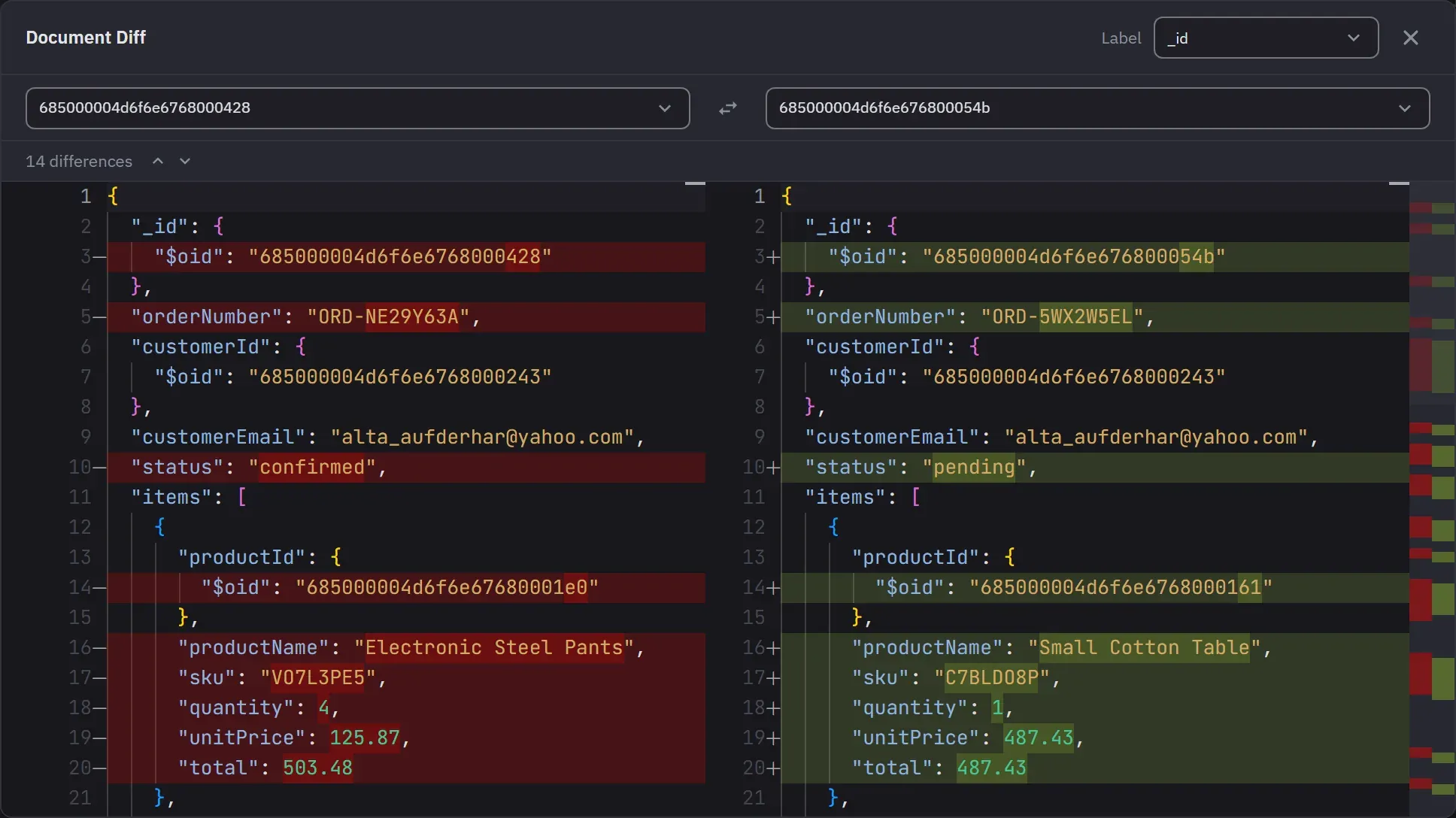
Rows multi-select by item, by range, or a whole page at once (Ctrl/Cmd+A). A bar above the result shows how many are selected and offers Copy, Diff, Delete and Cancel. Diff shows from two selected documents. The right-click menu offers the same actions while more than one document is selected.
Copy writes the documents as indented JSON: one object for one document and an array for more. Delete is not offered when the result cannot be attributed to a collection.
A bulk delete confirms first and lists the identifiers it will remove, with a count of any beyond the first few. You can open it as an editable query instead, if you would rather see the operation than approve it. On a write-protected connection the same dialog says that confirming bypasses write protection for this action, and there is no second dialog. Deleted rows leave the result immediately and come back if the server rejects the delete.
Diff compares two documents side by side in a dialog called Document Diff. Pick either document from
a list, swap the sides, and choose a label field. The label field is _id at first, and it can also
be Row number. The comparison is read-only and word-wrapped, and in a narrow window it shows inline
instead of side by side. Diff needs Pro. On Free the Diff action carries a PRO badge, and a click
anywhere on it opens the upgrade dialog. Bulk copy and bulk delete are on every tier.
Exporting a result
The Export button opens a menu in two steps: scope, then format. A line under the scope states what it will write. The scope is Loaded or All matching. The formats are JSON, CSV and, on Pro, Excel. On Free, Excel is listed with a PRO badge, and choosing it opens the upgrade dialog. The menu works from the keyboard. The arrow keys move between formats, and Escape or Tab past either end closes it.
The Export button is unavailable, with a reason, when the result is empty. It is hidden on a narrow panel.
The file name comes from the tab’s title, stamped with the date and time. The All matching scope marks the name. You pick the folder in the save dialog. Long exports show progress, appear in the background operations, and can be cancelled. A cancel removes the incomplete file, unless the file already existed, in which case it is left alone. A loaded export writes in one step and only reports when it is done. Both outcomes report the number of documents written, or the reason the export stopped.
Loaded
Loaded writes what the result holds now, which is capped by the connection’s result cap. A write outcome, a count or a single value can be exported this way, as a file of one document.
- JSON is one indented array of plain JSON. Type wrappers are unwrapped: an ObjectId is a hex string, a date is an ISO string, binary is base64 text, and a Long or a Decimal128 is a string. It reads well and does not import back as BSON.
- CSV and Excel flatten nested objects into dotted column names and arrays into indexed columns. The columns come from every loaded document, in alphabetical order.
All matching
All matching re-runs the query with .limit(), .skip() and the result cap dropped, whether you
wrote them as cursor calls or in the options object. It keeps limits inside nested pipelines. It is
unavailable, with a reason, for a result that cannot be read again as documents, such as a write
outcome, a count or a single value.
One confirmation covers the run. It says that the export can read an unbounded number of documents. When running the query again could repeat a write, it says that first, as a destructive action.
- JSON is relaxed Extended JSON, one document per line.
- CSV and Excel take their columns from a sample of the first 1,000 documents, in the order the fields first appeared, so the identifier stays on the left. When the export ends, a message names any field that appeared too late to get a column. Excel writes each array into one cell.
A CSV file starts with a UTF-8 byte-order mark, so a spreadsheet reads accented and non-Latin text correctly. The result export always writes it. The collection export dialog can omit it.
The two JSON exports are not the same format. The loaded export is not Extended JSON at all. Neither export gives you a choice of canonical Extended JSON. See Extended JSON and BSON and Export to CSV or Excel.