Database map
A scan reads a sample of every collection, finds the fields that reference other collections, and checks each one against the data.
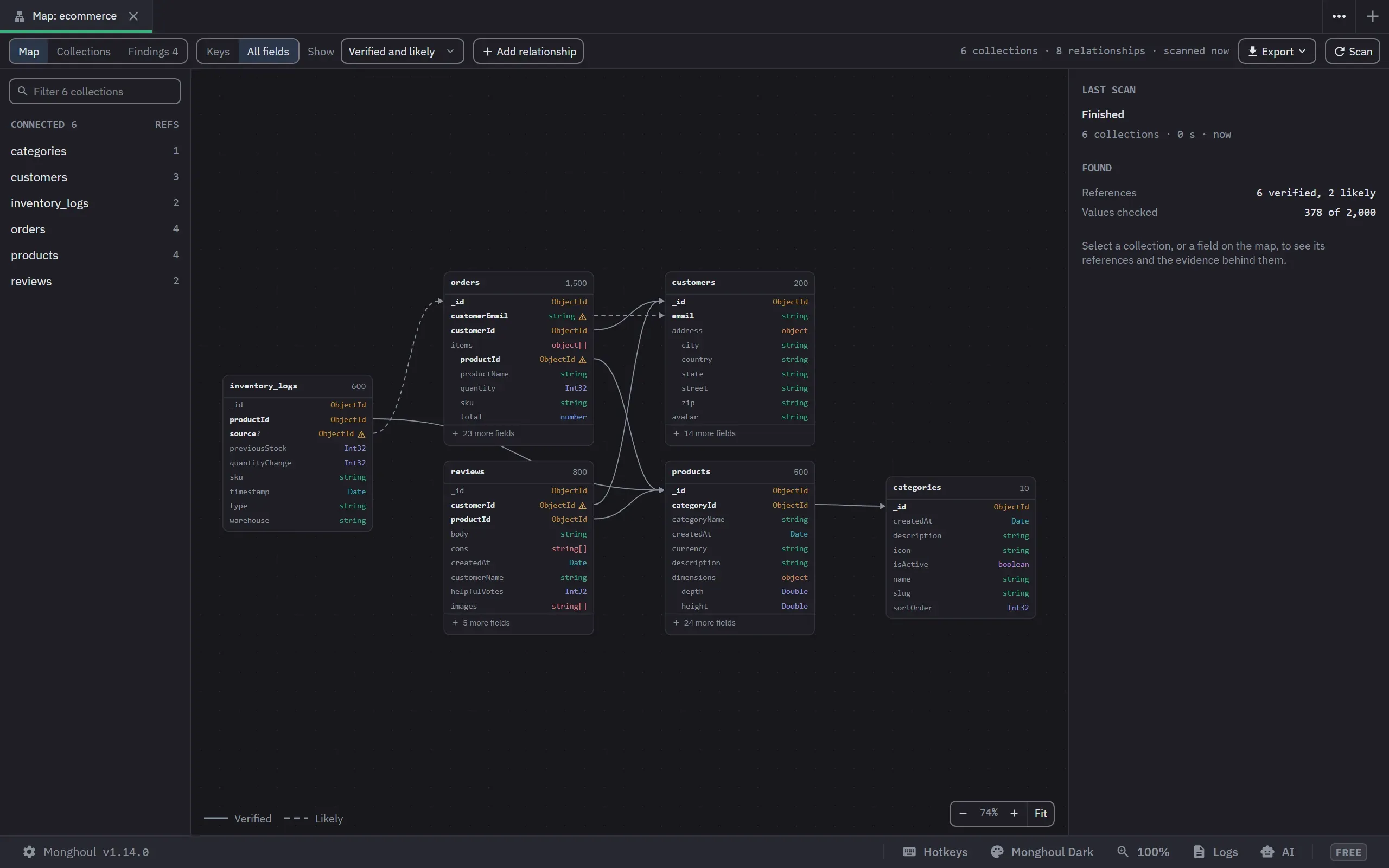
The Database Map draws a database’s collections as boxes and the references between them as lines.
A reference is a field in one collection that holds the _id, or a unique key, of documents in
another. The map comes from a scan of the data. It is available on every tier, and Pro adds a
history of what each scan saw. The map is in Monghoul 1.14.0 and later.
What the map is for
A scan runs once, and after it the rest of the app knows which field points where:
- Results. A reference in a result’s table or tree opens the document it names, beside the value, without writing a query. See Following a reference from a result.
- Autocomplete. Inside a
$lookup, the editor offers the collections this one references first and fillslocalFieldandforeignFieldfrom the map. See$lookupsuggestions. - Assistants. An AI client reads the same map over MCP.
find_join_pathgives it the pipeline that joins two collections, so it does not guess field names. See Assistants. - Findings. The sample shows the references with no index, the fields with mixed types, and the ObjectIds stored as strings, each with the action that fixes it. See Findings.
- A picture of an unfamiliar database, which exports as an image, a Mermaid ER diagram or a Markdown data dictionary.
Opening the map
The map opens in a tab titled Map: <database>, and each database has one such tab. Opening the map
again brings that tab to the front. There are three ways to open it:
- Database Map, in a database’s context menu.
- Show on Database Map, in a collection’s context menu. It also selects that collection.
- Open Database Map, in the command palette, or Ctrl+Shift+M (Cmd+Shift+M on macOS). It opens the map of the active tab’s database.
The tab has three views on the standard tab toolbar: Map, Collections and Findings. The Findings switch shows how many findings there are.
Scanning
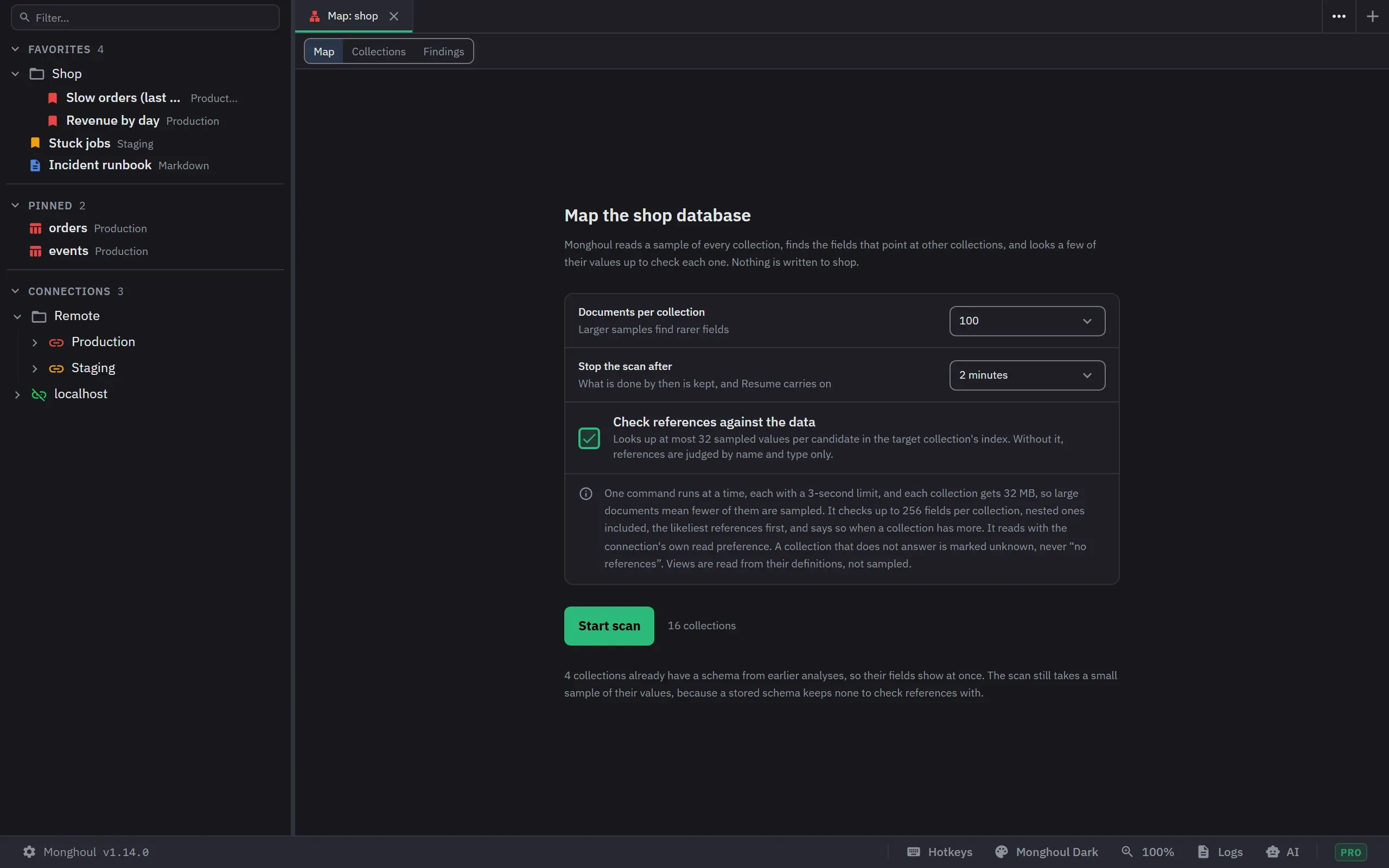
The tab asks for a scan the first time it opens, and it never starts one by itself. Scan starts it, Stop ends it, and Resume scan continues a stopped one. A scan reads a sample of every collection, finds the fields that point at other collections, and looks a few sampled values up in the target to check each one. It writes nothing to the database. It reads with the connection’s own read preference.
Settings
| Setting | Values |
|---|---|
| Documents per collection | 50 to 1,000, and 100 by default. Free is capped at 500, as schema analysis is. |
| Time limit for the whole scan | 1, 2, 5 or 10 minutes, or No limit. The default is 2 minutes. |
| Check references against the data | On by default. Without the check, references are judged by name and type only. |
No limit runs the scan to the end. It still stops when you stop it, when the footer’s Cancel stops it, or when you close the tab, and each command keeps its 3-second server limit.
Limits
The first-run screen states the scan’s limits:
- One command at a time, and each command has a 3-second server time limit.
- At most 32 MB sampled per collection, so a collection of large documents gets fewer documents sampled.
- At most 32 values looked up per candidate reference, and at most 2,000 per scan.
- At most 256 fields checked per collection.
Nested fields count like top-level ones: a field inside an embedded document or an array of
documents is read by its path, for example items.productId. A field that cannot be a reference is
not counted: a date, a flag, or a string or number that no name, DBRef or $lookup points at.
The 256 are the likeliest references. First come the fields that a DBRef, a $lookup or the GridFS
rule points at, then the fields whose name names a collection, then ObjectId and UUID fields that only their values
can place. A collection with more says so in the scan’s gaps, with how many it has. It is still
scanned, and it is not marked unknown. The sample itself follows up to 2,048 distinct fields in a
collection. That guards against keys that are data, and a collection with more says so.
The 2,000 values a scan may look up go to the likeliest references first. A field that only its values can place is looked up only while half of them are left, because it is checked against every collection that could hold it. So one wide collection cannot use up what the named references of the other collections need. A check that the budget leaves undone keeps what an earlier scan found.
What a scan reads and keeps
Views are read from their definitions and never sampled. GridFS chunks are not sampled either, and
their files_id reference to the files collection is known by convention.
No sampled value is stored. A stopped scan keeps only the list of collections it finished.
When a scan samples more documents than a collection’s stored schema was built from, it replaces that schema. Autocomplete and the schema view then get the larger sample.
Watching a scan
While the scan runs, a band under the toolbar shows it in every view, whatever is selected. It gives the collections done of the total, what the scan reads now, for example “Sampling orders · 40 of 100 documents”, the references found so far, and the seconds so far with about how many are left. A bar along its bottom edge fills as collections finish.
The rail marks each collection as done, being read, waiting or unknown, and the collection being read pulses on the map. Until the scan finds its first reference, the middle of the map shows every collection with where it stands. The tab’s entry in the tab strip shows a spinner for as long as the scan runs, whichever tab you are on.
Stopping and resuming
The scan is also listed in the footer’s current operations with its progress, and its Cancel stops the scan. Closing the tab stops it too. A stop keeps everything the scan already found, and the tab’s button then reads Resume scan, which continues from the first unfinished collection.
A collection that does not answer within the time limit, or that the login may not read, is marked unknown. It is never reported as having no references, and the map keeps what an earlier scan found about it.
A scan that cannot start says so in the server’s words. It names the command the server refused,
and it says which privileges the map needs: the read role.
How a reference is judged
Each reference has a tier, a score out of 100, and the evidence behind it. Each line of evidence says how much was looked at. The evidence is:
- how many of the sampled values the target holds
- whether the field’s name names the target collection.
customerId,items.productIdandtagIdsdo, and so does an embedded reference by the key above its id:customer._idnamescustomers, andproduct.skunamesproducts.sku. A name can also name a field, socouponCodenamescoupons.code.parentIdandparent._idpoint into their own collection. A top-level_idoridis the document’s own. - whether both sides have the same type
- whether a saved query, the query history or a view joins the two with
$lookup - whether a DBRef names the collection
- whether the field is indexed
| Tier | On the map | What it needs |
|---|---|---|
| Verified | Solid line | At least 20 values looked up and 90% of them found, no other collection holding most of them, and evidence other than the values: a name, a DBRef or a $lookup. |
| Likely | Dashed line | Good evidence that is not complete. |
| Possible | Hidden | Drawn only when the Show menu is set to Also possible. |
For a target with fewer than 20 documents, Verified needs every one of those documents looked up
instead. A reference to a field other than _id also needs a $lookup that names that field.
A reference found by its values alone is at most Likely, whatever its type, because ids 1..N match any collection that also counts from 1. A Likely reference says why it is not Verified.
Only ObjectId and UUID fields are checked against collections that their name does not point at.
That check runs only in a database of 60 collections or fewer, because each probe is one command.
A target field other than _id becomes a candidate only if it has a unique index or a $lookup
names it.
Reading the map
Each collection box lists its fields from the stored schema: _id first, then the reference fields,
then the rest. Nested fields are indented under their array or object. An array reads T[], a
field with more than one type reads mixed, and an optional field ends in ?. Type names use the
schema view’s type colours.
A box shows nine fields and a “more fields” row that expands it, and an expanded box can be folded
again. Keys shows only _id and the reference fields. All fields is the default.
A field with a finding carries a warning triangle, and its tooltip names the finding. A hidden finding marks nothing.
The layout places a collection to the left of the collections it references. Collections joined by references form a group, each group is laid out on its own, and the groups sit in rows. A column taller than 1,320 px wraps into another column beside it. The exported image uses the same layout.
Drag the map to pan it, and use the mouse wheel, a pinch or the zoom buttons to zoom, from 5% to 200%. Fit fits the whole map again. The map fits itself until you move it, so a first scan shows every box as it arrives. After you move it, it stays where you left it, through a rescan and a switch to another view and back.
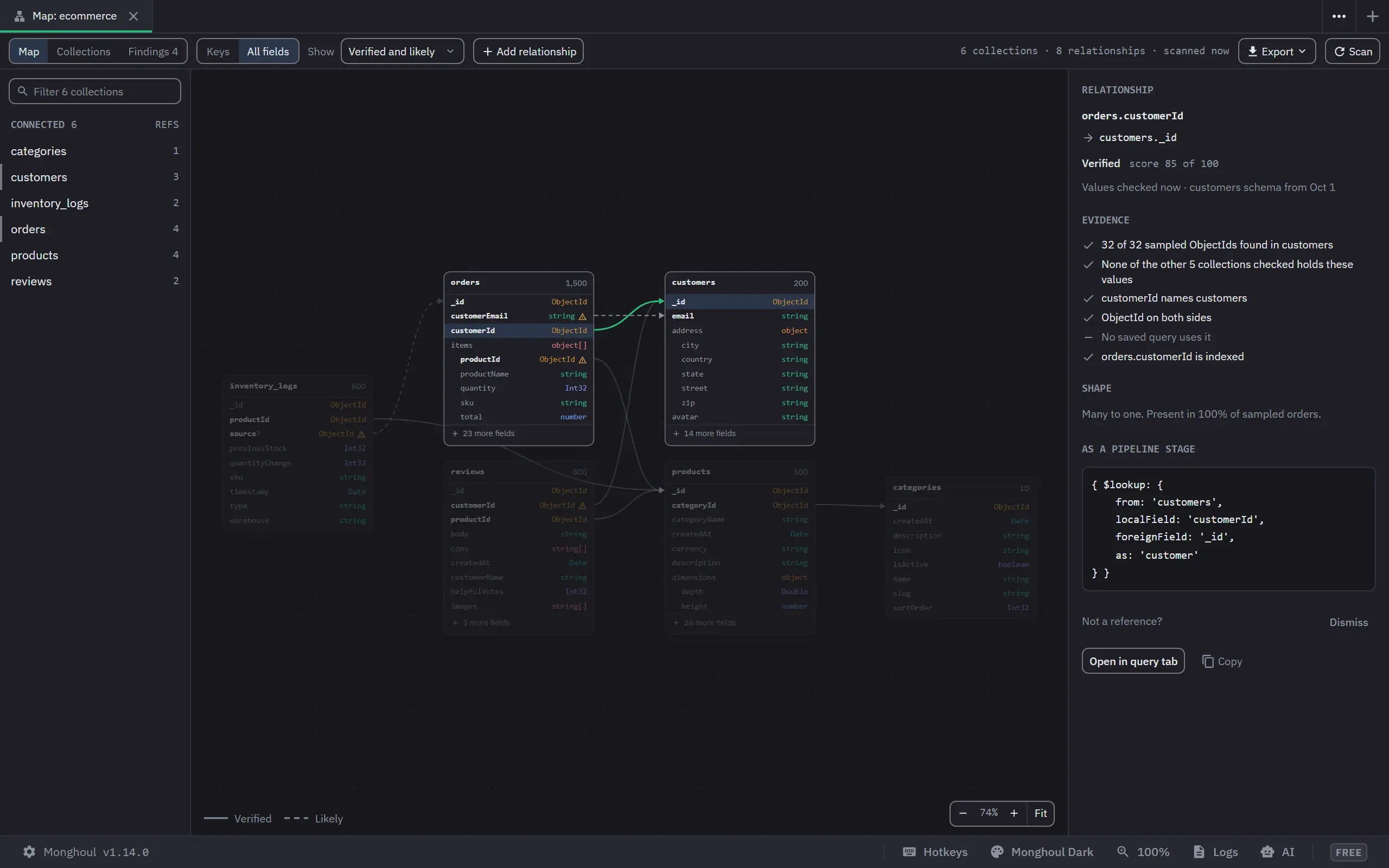
A click selects and moves nothing. A selected collection keeps itself and its neighbours at full strength and dims the rest. A selected reference keeps its two ends and marks both fields. A double-click on a collection’s name brings it and its neighbours into view, and a click on the empty map clears the selection.
The rail beside the map lists the connected collections with their reference counts, then the collections with no references, and it filters by name. A pick in the rail selects the collection and brings it and its neighbours into view.
Large databases and narrow panels
The whole map is drawn, whatever its size. A map of more than 24 boxes has a minimap, which you can drag and zoom. Below 45% zoom, a box shows its name in large type in place of its fields.
To work on one part of a large map, select a collection and choose Show only its neighbours in the inspector. The map then shows that collection and its neighbours, one or two hops out. Show the whole map widens it again.
Below 640px wide, the tab shows the references as a list, and a pick opens its evidence.
The inspector
The inspector shows the selection:
- For a reference: its tier, score, evidence and shape (many to one, many to many, or a
self-reference), and the
$lookupstage that follows it. You can copy the stage or open it in a query tab. - For a collection: its size, its references in and out, and actions to show only its neighbours, query it, open its schema, or scan it alone.
- With nothing selected: the scan. While the scan runs, the inspector shows what it reads now, what it found, its budget and its gaps. Afterwards it shows what the scan found and what it could not learn, with a retry at 20 documents for a collection that did not answer.
Verdicts
You can confirm or dismiss a reference, and the verdict survives every rescan. The inspector says who gave the verdict: “you”, or an assistant over MCP, by the name its client gives.
A relationship that an assistant added shows that name and the assistant’s note. It counts as Likely until you confirm it, and it offers Confirm, Remove and a link to AI Activity, where the call is listed.
A dismissal can be undone from the collection it came from. A dismissed reference can be restored from Show › Dismissed. The Show menu has three choices: Verified and likely, Also possible, and Dismissed.
Add relationship, in the toolbar, records a reference the scan did not find. The app checks it once when you add it, keeps it as confirmed, and says after the save what the check found. When exactly one collection fits the field’s name, the dialog fills it in as the target. Each of its four lists, the two collections and their fields, takes a search. Add Relationship… also opens from the context menu of a value in a result, even on a database that was never scanned.
The same menu offers Confirm Reference to a collection, for a reference the scan found only as Likely. The link appears at once.
A reference whose collection is dropped is hidden, and it keeps its verdict.
The Collections view
The Collections view lists every collection, largest first. For each one it shows the documents, average size, data size, indexes, index size, fields, references in and out, findings, and how much of the collection was sampled. Selecting a collection shows its fields and types, with a way back to it on the map.
Findings
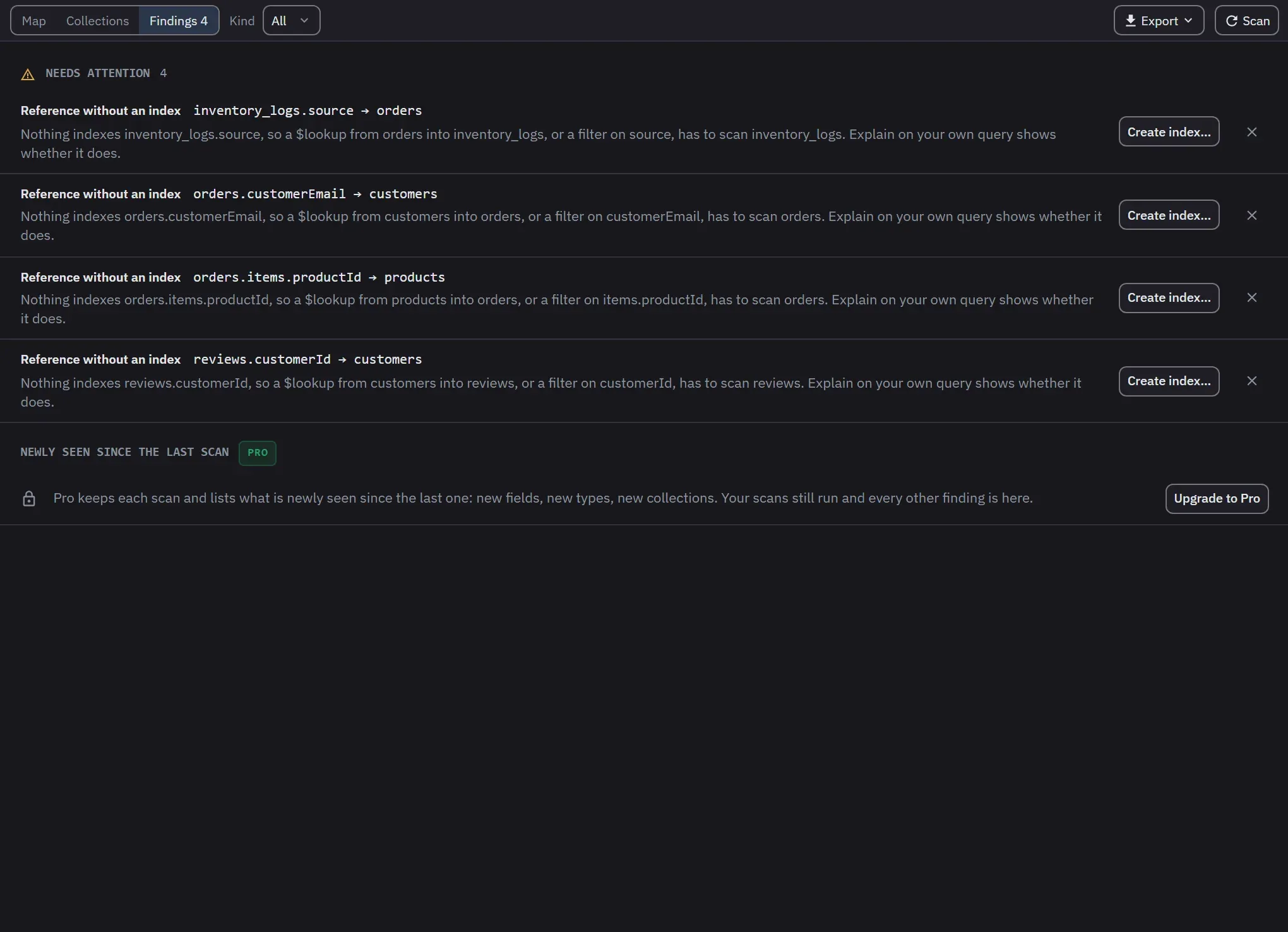
The Findings view lists what the last scan’s sample showed, in two groups. Severity is marked once, on the group.
Needs attention
- A reference whose field no index leads with.
- A field with more than one type of value. Every number type counts as one type, and a null counts as no type.
- 24-character hex strings in a field that holds ObjectIds, or in a field whose name points at a collection with ObjectId ids.
Worth knowing
- A reference with checked values that match nothing.
- Field names that differ only by case under one parent.
- A sampled document of 8 MB or more.
- An array whose longest length is at least 100 elements and ten times the median length.
- An index that
$indexStatsreports no operation on after seven days of counting, on the member the scan read. This finding needs a privilege that thereadrole does not have, and without it the finding is left out.
What a finding says and offers
Each finding says how much it looked at, for example “4 of 100 sampled documents” or “1 of 32 checked values”. No finding is a claim about the whole collection.
Each finding ends in an action the app already has:
- Create index…, with the field filled in.
- A query tab with the query written: the documents of the other types, the hex strings, the unmatched references, the other spellings, or the largest documents.
- The collection in the tree.
Nothing runs until you run it. A query that the map writes carries .limit(100), and a query with a
$lookup starts with { $limit: 100 }, so the lookup runs for those documents only.
A Kind menu filters the list. You can hide a finding, and a hidden finding stays hidden across scans. It is listed under “N hidden”, and it can be shown again.
Newly seen since the last scan
This group is Pro. Pro keeps the fields of each finished scan: per collection, how many documents were sampled, and per field, how many documents held it and each type. No value is kept. Pro keeps the ten newest scans of a database, and the oldest goes first.
The third group of the Findings view lists what the newest scan shows that an earlier one did not:
- a new collection
- a newly seen field
- a newly seen type in a field
Each one carries the counts of both samples, for example “In 4 of 100 sampled orders. None of the 100 sampled on 21 Sep had it.” A field that the newer sample missed is not reported as gone, because a sample that misses a rare field says nothing about it.
The group compares with the scan before the newest, and a menu in its heading picks an older one. A newly seen field or type offers a query tab on its documents. With one scan kept, the group says that the next scan is compared with this one.
On Free, the group shows its heading with the Pro badge, one line about what Pro adds, and Upgrade to Pro. Free scans keep no snapshot. When Pro access ends, the scans already kept stay stored, no new one is kept, and the group shows the upgrade line until Pro is active again.
Export
The toolbar’s Export menu writes the map out in four forms. Each one carries every field of every collection it draws, and the relationships the map shows by default.
Image
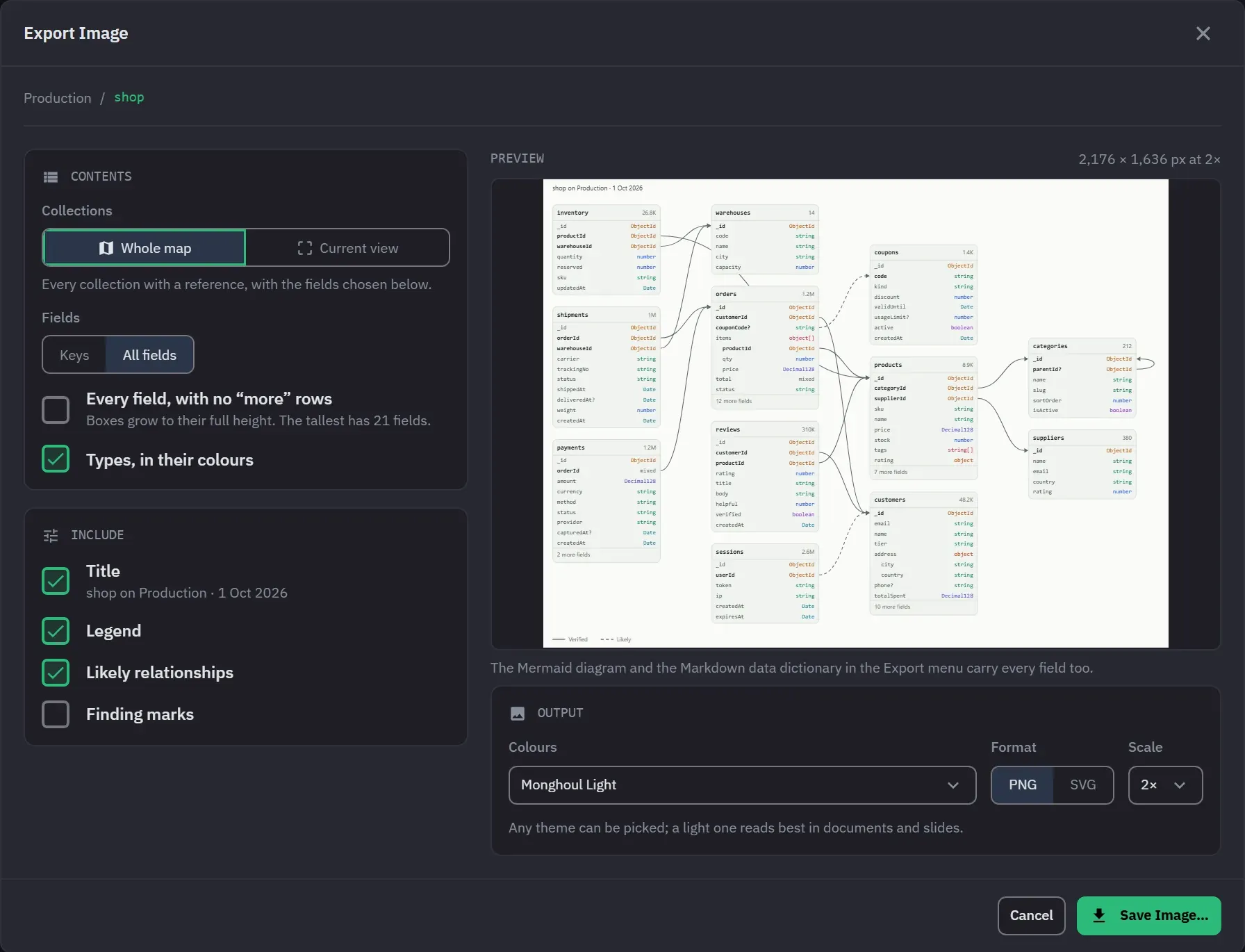
Image… opens a dialog with these choices:
- What to draw: the whole map; the current view, which is what the tab draws now with its fields, its open boxes, its Show choice and its narrowing; or the neighbours of the selected collection, whose name the hint under the choice gives.
- Keys or All fields, and optionally every field with no “more fields” rows.
- The types in their colours, or no types.
- A title (the database, the connection and the date), the legend, the Likely lines and the finding marks. Each one is optional.
- The colours of any theme, built-in or custom. The dialog starts on Monghoul Light, because a light image reads best in a document.
It saves a PNG at 1×, 2× or 3×, or an SVG. The preview is the saved image itself.
Mermaid diagram
Mermaid diagram… saves an erDiagram with each collection’s fields and types. _id is marked PK
and the reference fields are marked FK. There is one line per reference: solid for Verified and
Confirmed, dotted for Likely, and many for an array.
Mermaid allows only word characters in names, so a dot in a path is written _, and the attribute’s
comment keeps the path. Copy as Mermaid puts the same text on the clipboard.
Markdown data dictionary
Markdown data dictionary… saves one section per collection. Each section has the collection’s size and a table of its fields. The table gives each field’s types, marks the optional fields, and says what each reference points at. The section also lists the references that point at the collection.
References as JSON
References as JSON… saves each reference with its tier, score, verdict, origin, the values checked
and the $lookup stage that follows it.
Following a reference from a result
On a database the map has scanned, the table view and the tree view link a reference to its target. A column that the map has Verified or Confirmed as a reference names its target in the header, for example “customerId → customers”. A Likely reference gets no link.
The row under the pointer, the selected rows and the row that holds the focus show a link in each reference cell. The other rows show no link.
In the tree view, a reference field’s row shows the link after its value when the row is under the pointer or holds the focus. Each element of an array of references links too. A table cell’s expanded viewer links the same way, at any depth. In every view, the context menu of a reference value offers Show Referenced Document.
Clicking the link shows the referenced document beside the value. The header is one line: the
target collection and the field it was found by, for example customers by _id. Its tooltip gives
the whole reference and the value. The body shows the document as a tree, in the result views’
type colours. It lists the first ten fields, and Show all fields lists the rest. An embedded
document or array shows a one-line preview until you open it. You can select and copy any of the
peek’s text. When no document matches, the peek says so. When the read fails, the peek shows the server’s
answer and a Retry button. The read is one findOne on the connection, with a 3-second server
limit.
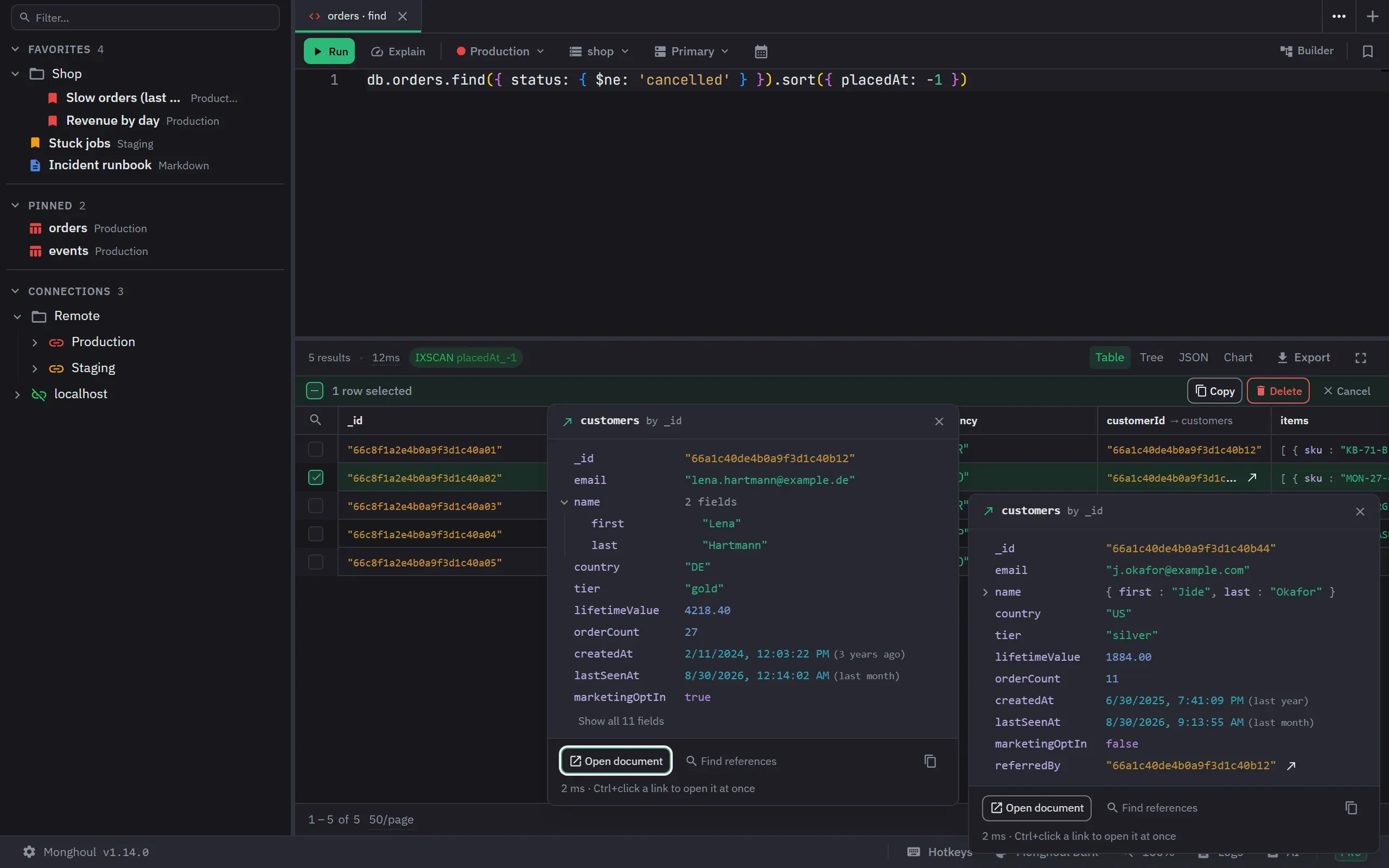
The peek has three actions. Open document opens a query tab on the target, filtered by the value. Find references opens one on the source collection, filtered by the same value: the orders of this customer, for example. Its tooltip names both collections. Copy puts the document on the clipboard as JSON. Neither query runs until you run it.
A reference inside the peeked document has a link too, at any depth. It opens the next peek beside the first, which stays open, so you can follow a chain: from an order to its customer, then to the customer who referred them. A link in a lower peek replaces every peek above it.
Ctrl+click (Cmd+click on macOS) on a link opens the target in a new tab at once. Escape closes the top peek. A peek’s Close button closes it and every peek above it, and a click outside the peeks closes them all. After Escape or Close, the focus goes back to the link that opened the peek.
$lookup suggestions
Once the database has been scanned, the map’s relationships order the $lookup suggestions in the
code editor and in the aggregation builder. from lists the related collections first, and a
snippet writes the whole $lookup stage for each relationship.
Schema-aware autocomplete has the details.
Assistants
With AI access, which is Pro, an assistant reaches the map through six MCP tools in the Collection
structure group: get_database_map, scan_database_map, open_database_map, find_join_path,
get_database_findings and set_relationship_verdict. AI access
says what each one does.