Map an unfamiliar MongoDB database
You were handed a database with no diagram. Scan it, see which references the data proves, and export a data dictionary or an ER diagram.
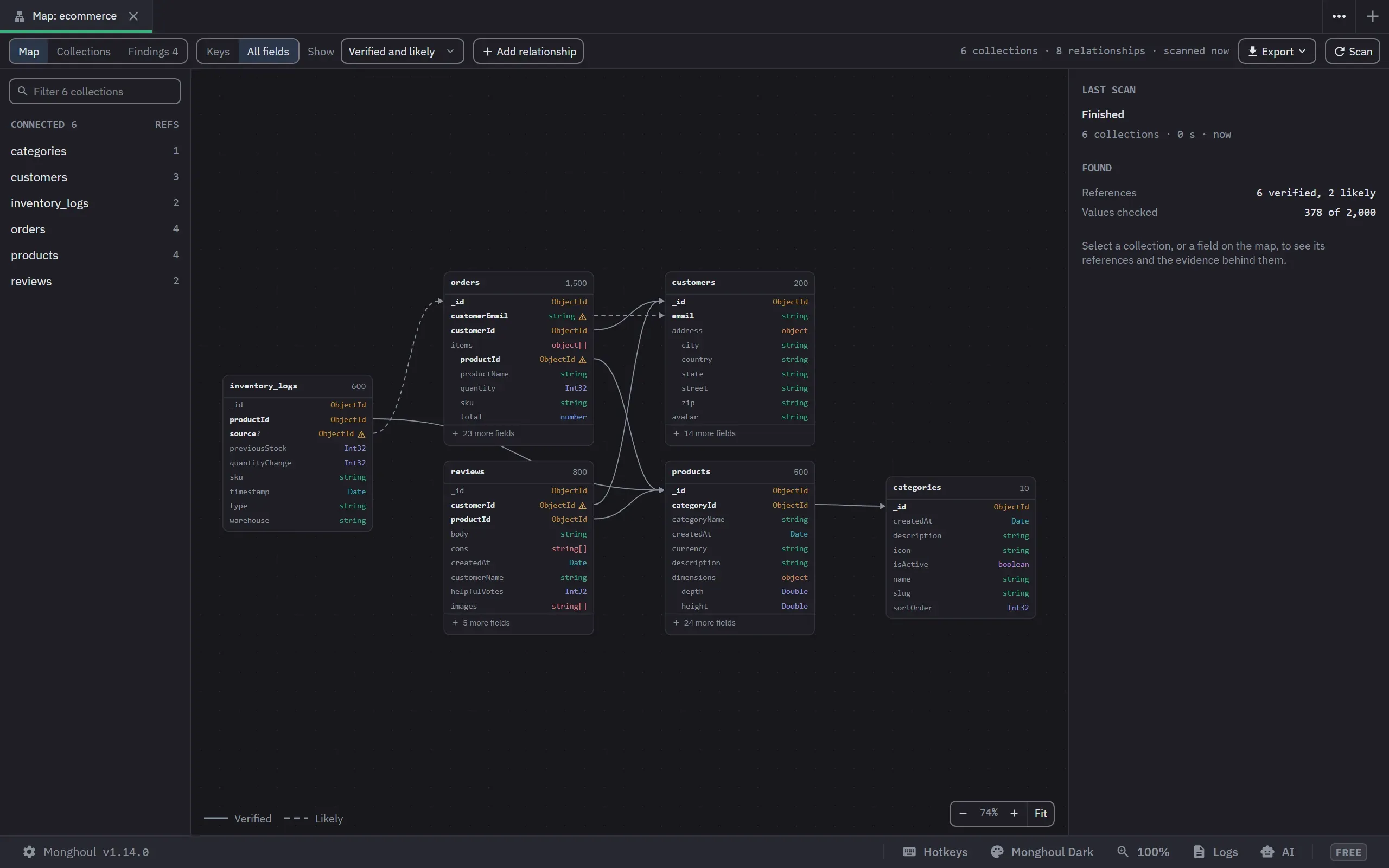
MongoDB stores no foreign keys, so a database you did not design does not tell you how its collections connect. The Database Map works that out from a sample of the data, and it checks each reference against the collection it points at. It is on every tier, and the scan writes nothing.
Scan the database
- Right-click the database in the sidebar and choose Database Map. The map opens in a tab
named
Map: <database>. The shortcutCtrl+Shift+M(Cmd+Shift+Mon macOS) opens the map of the active tab’s database. Show on Database Map on a collection opens the map with that collection selected. - On the first-run screen, set Documents per collection: 50, 100, 250, 500 or 1,000. Free stops at 500.
- Set Stop the scan after: 1, 2, 5 or 10 minutes, or No limit. What is done by then is kept.
- Keep Check references against the data on. Without it, the scan judges references by name and type only.
- Click Start scan. It runs one command at a time, and each command has a 3-second server limit. A band under the toolbar shows which collection it reads and how many references it has found so far.
The tab has three views: Map, Collections and Findings. Collections lists each collection with its documents, sizes, indexes, references and how much of it the scan sampled.
When the scan ends, the Map view shows one box per collection, with its fields, and a line for each reference. The rail beside the map lists each collection with its reference count, and a collection marked unknown did not answer.
The login needs the read role. A scan that cannot start names the command the server refused.
If you cancel the scan or close the tab, the map keeps everything found so far, and Resume scan in the toolbar continues from the first unfinished collection. Scan in the same place runs it again. A collection that did not answer is marked unknown. With nothing selected, the inspector offers a retry at 20 documents for it.
On a large database, the map fits every group of collections on screen. Scroll to zoom in, or pick a collection in the rail to bring it and its neighbours into view. Show only its neighbours in the inspector narrows the map to one collection’s neighbourhood.
Read Verified against Likely
Select a line to see its evidence in the inspector. Each line of evidence says how much the scan looked at.
- A solid line is Verified. At least 20 values were looked up and 90% of them were found in the
target. There is also evidence other than the values: a field name that names the target, a
DBRef, or a
$lookupin a saved query, the query history or a view. - A dashed line is Likely. The evidence is good but not complete, and the reference says why it is not Verified. A match on values alone is at most Likely, because ids 1..N match any collection that also counts from 1.
Possible references are hidden. The Show menu draws them with Also possible.
Confirm or dismiss
When you know the answer, confirm or dismiss the reference in the inspector. A verdict survives every rescan. A confirmed reference is treated like a Verified one: the table and tree views link it to its target, and the Mermaid export draws it as a solid line.
For a reference the scan did not find, use Add relationship. The app checks it once and keeps it as confirmed.
Verified and confirmed references also work in query results. A column header reads customerId → customers, and a link on the value shows the referenced document beside it. A field the map has not
linked offers Add Relationship… or Confirm Reference in the result’s right-click menu, so you
can fix a missing link without leaving the result.
In Show, Dismissed lists the dismissed references, and Restore brings one back.
Read the findings
Switch to Findings, and start with the Needs attention group: a reference whose field no index leads with, a field with more than one type of value, and 24-character hex strings where ObjectIds belong.
Each finding says how much it looked at, such as “4 of 100 sampled documents”. It describes the sample, not the whole collection.
Each finding ends in an action: Create index… with the field filled in, or a query tab with the query written. Nothing runs until you run it. Hide the findings you already know about, and they stay hidden across scans.
Export what you learned
The toolbar’s Export menu has four forms:
- Markdown data dictionary…, one section per collection, with a table of its fields and what each reference points at.
- Mermaid diagram…, an
erDiagramwith_idmarked PK and the reference fields marked FK. Copy as Mermaid puts the same text on the clipboard. - Image…, a PNG or an SVG. The dialog starts on Monghoul Light, because a light image reads best in a document.
- References as JSON…, each reference with its tier, score, verdict and the
$lookupstage that follows it.
Scan again later
On Pro, the app keeps the fields of each finished scan, for the ten newest scans of a database. The next scan’s Findings view then has a third group, Newly seen since the last scan, which lists a new collection, a newly seen field, or a newly seen type in a field.
Next
- Database map reference
- Join two MongoDB collections with $lookup, where the map’s relationships order the suggestions