Open a SQLite file
Open an existing .db or .sqlite file, or make a new empty database, and browse a table in two clicks.
Open an existing file
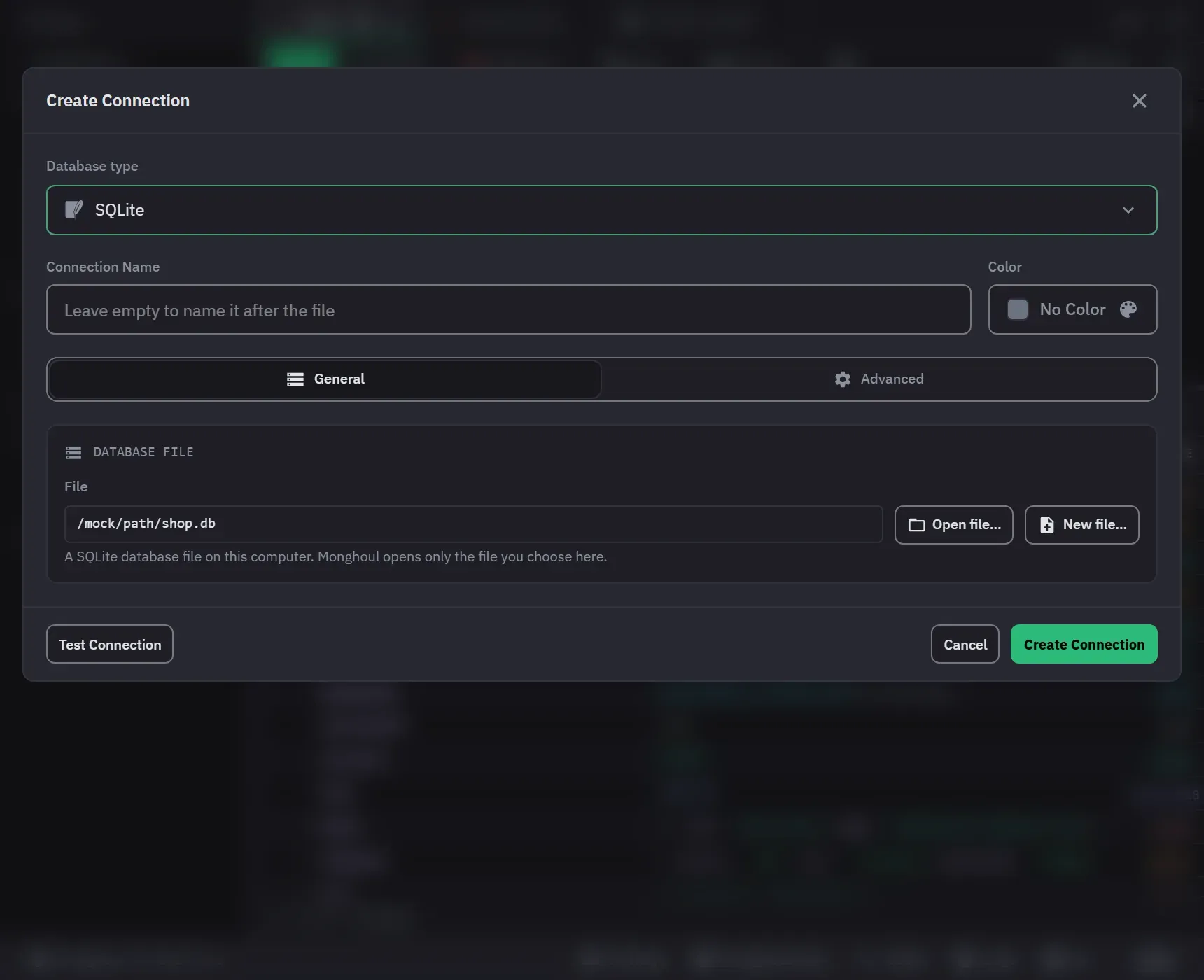
- Click Add Connection in the sidebar and choose SQLite in the Database type list.
- Click Open file… and pick the database in the system’s dialog. It offers
.db,.sqlite,.sqlite3and.db3files. You cannot type a path. - Click Test Connection. It says “Opened: SQLite” with the version and the file size, or says that the file is missing, damaged or not a database.
- Save. A file has no user or password, so Monghoul asks for none.
Make a new database
Click New file…, choose a name and a folder, and save the connection. Monghoul makes the empty database file when you save. If the Free plan’s limit of 8 connections refuses the save, no file is made.
Browse a table
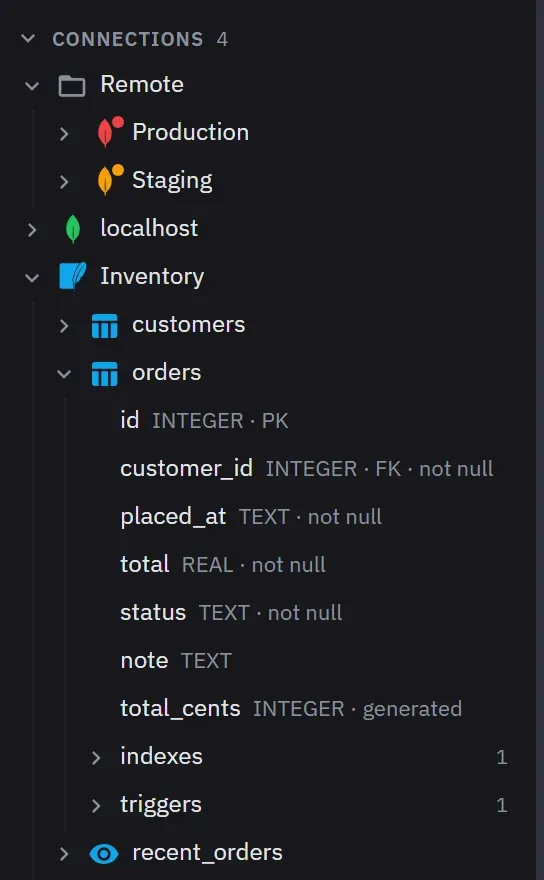
Open the connection in the sidebar. It lists the file’s tables and views. Double-click a table, or
choose Browse: a draft opens with SELECT * FROM "name" LIMIT 100 and runs once. A table with no
primary key reads rowid, *, so you can still edit its rows in the grid.
Keep the file safe
- Set Access mode to Read-only on the Advanced tab to refuse every write.
- Tick Confirm every write on this connection to be asked before each write.
- Editing the connection keeps its file unless you pick another one.
Monghoul reads the file with up to four background processes. Editing or deleting the connection, and quitting the app, end them at once, so the file is not held open after you are done.
Next: SQLite in Monghoul.